Search Filters
Once a search query is performed and results are displayed, refine the results by selecting specific filters. Filters are available on the left pane or by using the column headers in the results grid.
Note
Filters are not always available and will load dynamically based on results.
Left pane filters have drop-down selections.
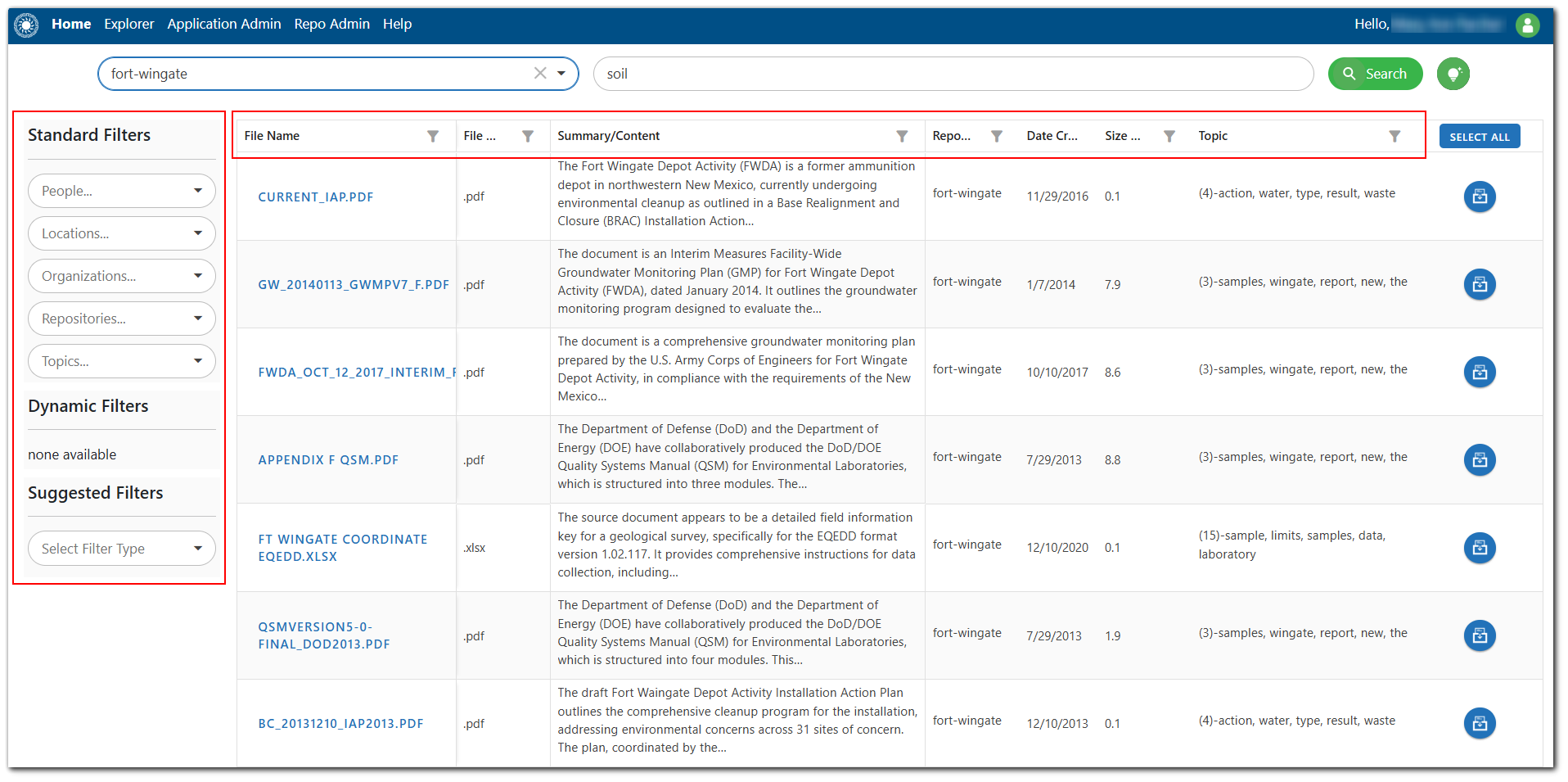
Column Headers
Sorting
Grid column headers are freeform text boxes. By clicking on the column header, users can sort the results grid based on that column in ascending (one click) or descending (two clicks) order. To reset back to the default sort from the descending sort, click one more time.
Filtering
Each column displays a filter icon to the right of the column header. Clicking the filter icon opens a modal with filter, search, and selection functionality. Depending on the contents of the selected column there are either text or numeric filter options, a search box that allows users to search for a specific value, and selectable check boxes to display only the desired results. The Custom Filter option allows for enhanced filtering, such as AND/OR comparisons based on specific values.
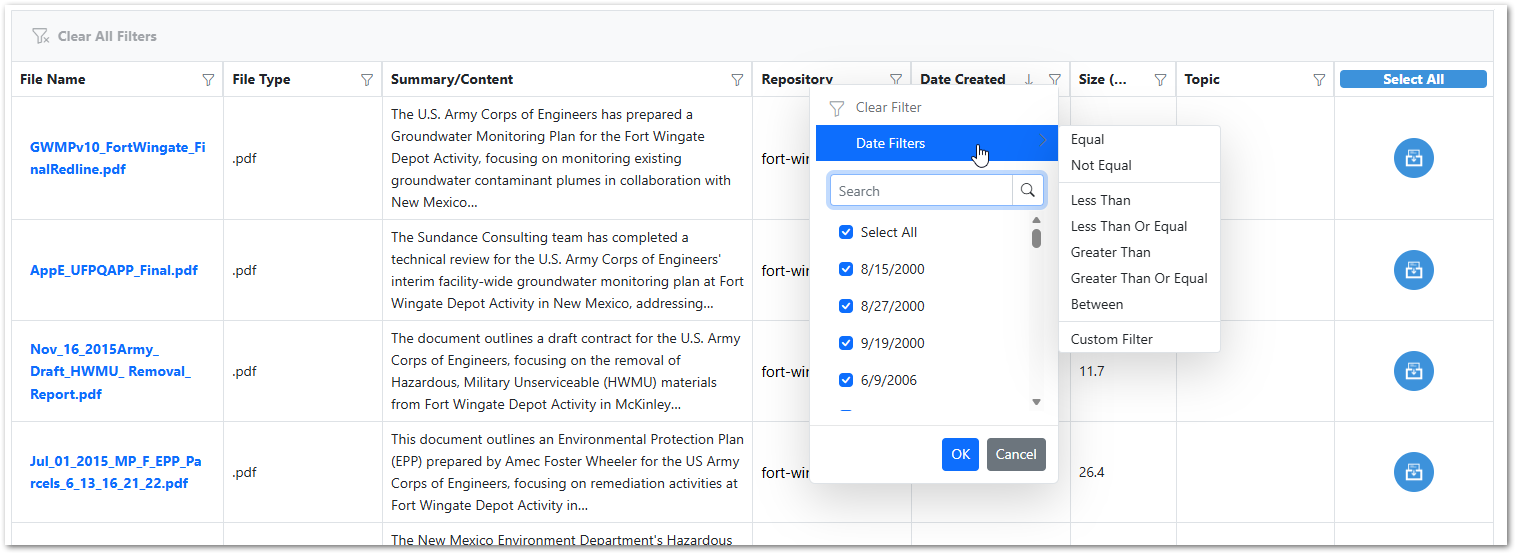
Click Clear All Filters to clear filters from all the columns in the results grid.
Standard Filters
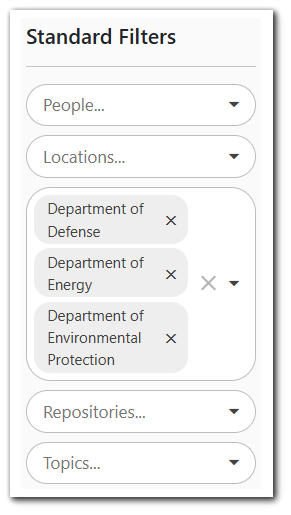
The search results can be filtered by People, Locations, Organizations, Repositories, and Topics.
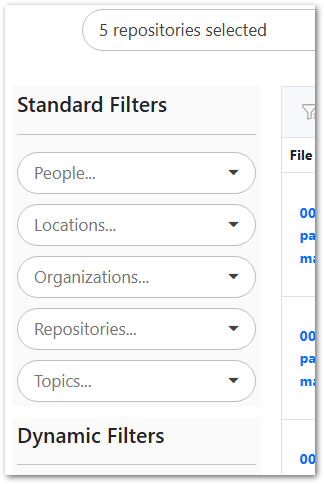
Select the desired drop-down filter and page through the results or search for a specific filter term.
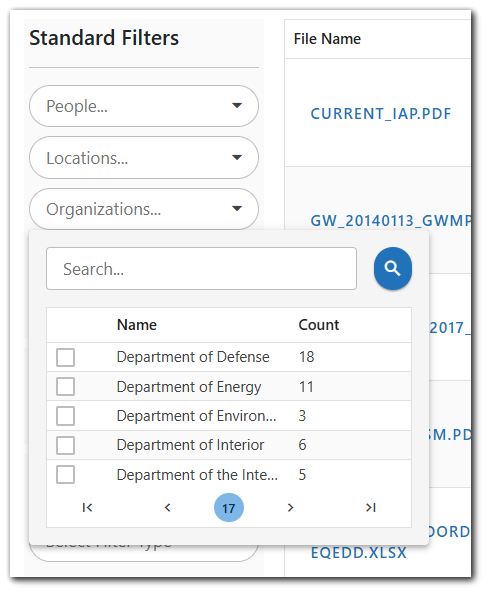
Files – The number of unique documents for a particular filter.
Occurrence – The estimated number of times a particular filter appears in all relevant documents. This keyword frequency is calculated based on the first 15,000 characters of the documents.
Note
The Standard Filters can be combined to filter subsets of documentation. The only exception is the Topics standard filter.
The results in the grid will filter based on the items selected in the Standard Filters box. The selected tags appear in the Standard Filters box. To remove all tags, click the X in the filter box. Individual filter tags can also be removed.
Dynamic Filters
The dynamic filters are based on the metadata of the documents in the repository. Configuration of these filters is controlled by the Repository Administrator.
Suggested Filters
The suggested Filters provide a list of terms that can be applied to narrow down the search. Select People, Locations, or Organizations as the filter type from the drop-down. The resulting selectable filter terms indicate how often these appear in search results.
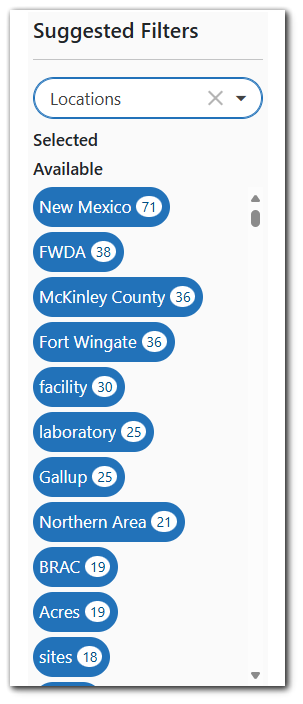
Selecting a filter will apply the filter to the search results and will move the filter into the Selected section of the Suggested Filters box.
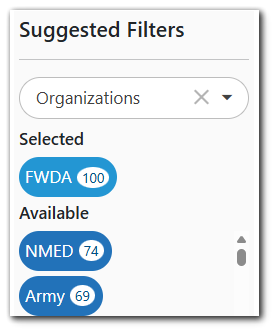
Select the filter again to remove the filter from the search. To use a different filter, select the desired filter from the Available list. Only one filter can be applied at a time.